
Reading time: 6 min
Most SFMC teams spend time building Data Extensions and writing SQL queries, but fewer pay attention to how those tables are connected to each other. Data Designer is where that happens. Get it right and Journey Builder, segmentation, and personalization work as expected. Get it wrong and you end up troubleshooting data issues that are difficult to trace.
What is Data Designer?
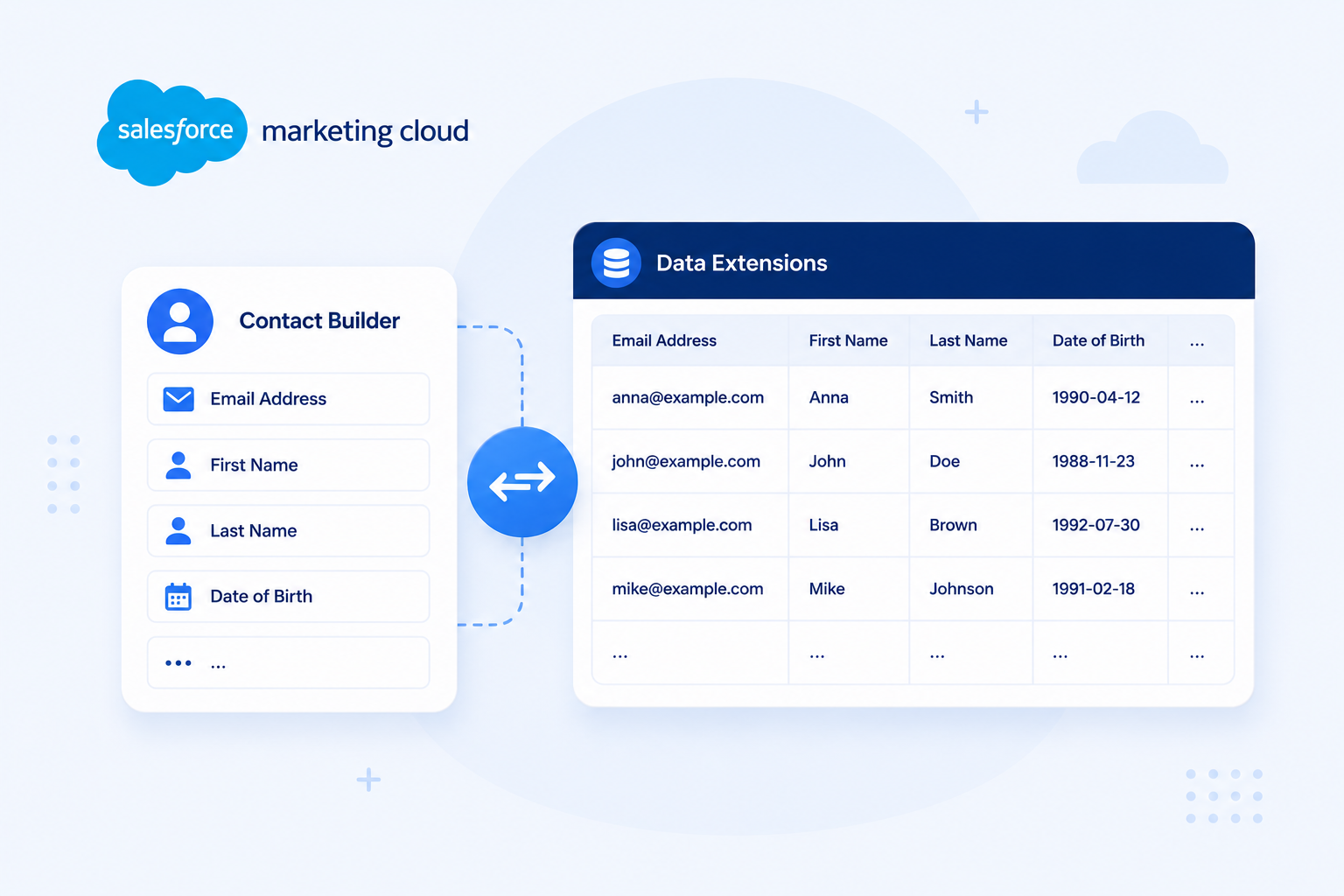
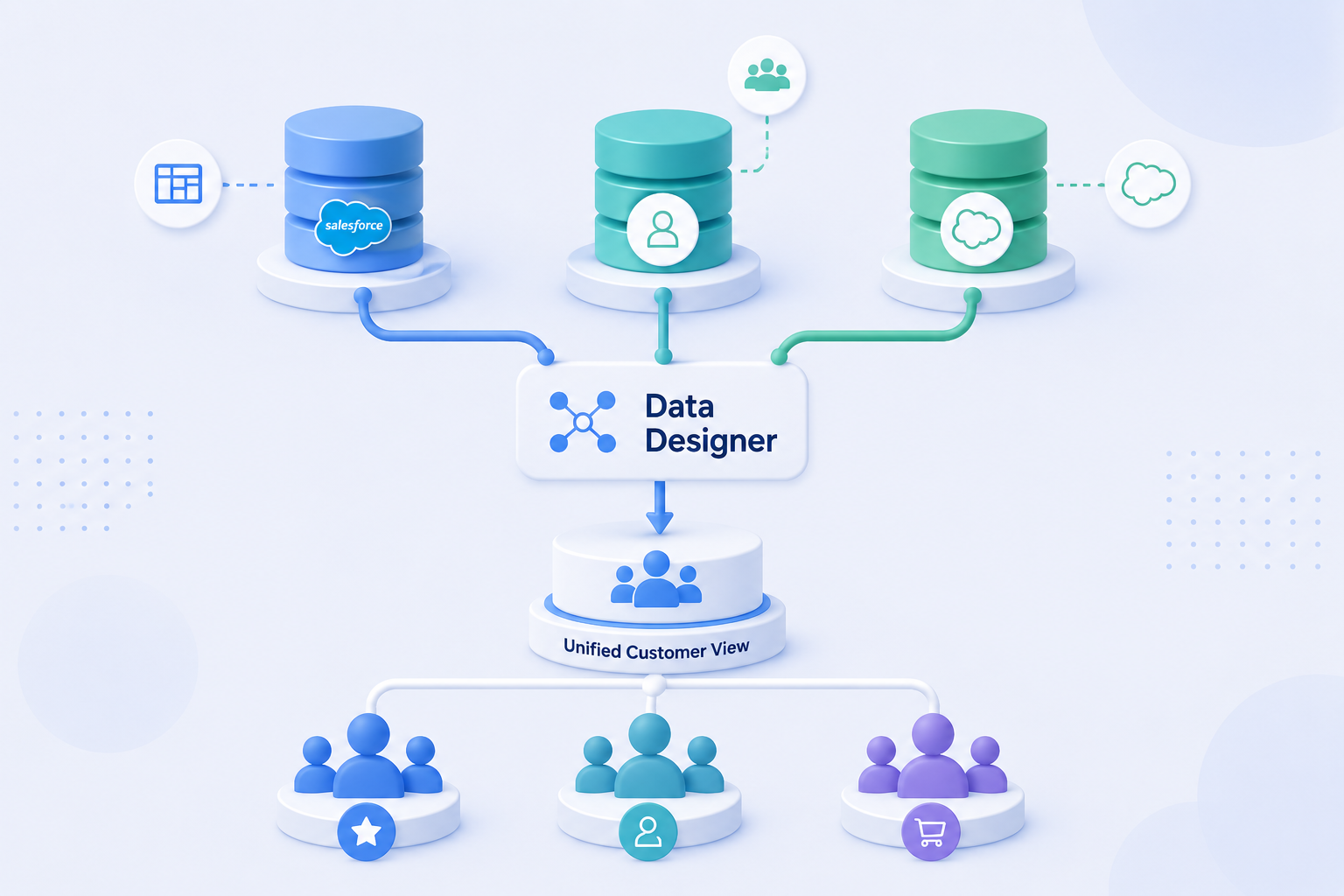
Data Designer is a tool inside Contact Builder in SFMC. It is where you define your data model: the structure of your customer data and the relationships between your Data Extensions. It tells Marketing Cloud how your tables relate to each other and to the contacts in your account.
Without a properly configured data model, Journey Builder cannot reliably read data from linked Data Extensions, and segmentation becomes harder to manage at scale.
Data Design Concepts Behind the Tool
Before going into SFMC specifics, it helps to understand the general principles Data Designer is built on.
Entity relationships: In any data model, entities (Customer, Order, Product, Event) are connected to each other. A customer places orders. An order contains products. Defining these connections is what makes data queryable and usable across tools.
Cardinality: Cardinality describes the nature of the relationship between two entities. A customer can have many orders (one-to-many). An order belongs to one customer (many-to-one). Getting cardinality wrong means the system cannot correctly resolve which records belong to which contact.
Attribute vs event data: Attribute data describes who a contact is (name, location, preferences). Event data describes what they have done (clicked, purchased, logged in). A well-structured data model keeps these separate and links them through a shared identifier.
These concepts apply across CDPs, data warehouses, and any ESP operating at scale. SFMC implements them through Data Designer in Contact Builder.
Core Concepts in SFMC Data Designer
Population A Population is a master set of contacts sharing an overarching theme. Most accounts use a single Population (All Subscribers), but organizations with distinct contact types – customers and prospects, or riders and drivers – can create separate Populations with their own data models and journey structures. (Salesforce Trailhead)
Attribute Groups An Attribute Group is a collection of related Data Extensions linked together within Data Designer. A Customer Attribute Group might contain a Customer DE, an Orders DE, and a Product DE, all connected through shared keys. Attribute Groups are what Journey Builder reads when pulling contact data during a journey. (DESelect)
Linking Linking connects two Data Extensions within an Attribute Group through a shared field – for example, a Customer DE linked to an Orders DE via a Customer ID field. The link defines how SFMC resolves which order records belong to which contact.
Cardinality When linking two DEs, SFMC requires you to specify the cardinality of the relationship:
- One-to-one: each record in DE A maps to exactly one record in DE B (e.g. Contact to profile preferences)
- One-to-many: one record in DE A maps to multiple records in DE B (e.g. Customer to orders)
- Many-to-many: requires a junction table between the two DEs (e.g. Orders to products)
Cardinality must reflect your actual data structure. Setting it incorrectly affects how Journey Builder resolves contact data and can cause personalization to fail silently.
Common Mistakes
Setting the wrong cardinality. If a one-to-many relationship is set as one-to-one, SFMC will only resolve one record per contact, silently dropping the rest. This is difficult to diagnose if the data model was not documented upfront.
Linking Synchronized Data Extensions directly into an Attribute Group. SDEs are read-only and not sendable. Linking them directly can cause issues when the Attribute Group is used as a journey entry source. Query the SDE into a Standard DE first, then link the Standard DE. (Mateusz Dąbrowski)
Not defining a Population when the account has distinct contact types. Using a single Population for contact types with very different data structures makes the model harder to manage. If your account has genuinely distinct audiences, separate Populations give you cleaner separation.
Changing cardinality after journeys are live. Updating a relationship cardinality while journeys are running can cause them to fail or behave unexpectedly. Any change to the data model should be tested in a non-production environment first.
When to Revisit Your Data Model
Personalization is pulling wrong or missing data. Journey Builder is reading from the data model in real time. If personalization fields are blank or incorrect despite the DE containing the right records, the issue is usually a broken link or wrong cardinality in Data Designer – not the DE itself.
SQL queries return correct data but journeys behave unexpectedly. This is a common disconnect. A query might produce the right output, but if the Attribute Group is not structured correctly, Journey Builder will not read it as expected. The data model and the query logic need to be reviewed together.
You are adding new data sources. Any time a new DE is introduced – a new CRM object, a third-party integration, or a new channel – it needs to be linked into the relevant Attribute Group. Leaving new data sources unlinked means they cannot be used in journeys or Decision Splits without additional workarounds.
Your business has added a new audience type. If you start marketing to a new segment – a new product line, a B2B audience alongside B2C, or a new market – the existing Population and Attribute Group structure may not fit. A new Population with its own data model is often the cleaner solution than trying to extend the existing one.
Contact counts look wrong. If the number of contacts in Data Designer does not match what you expect from your source data, it usually points to a linking issue, a Contact Key mismatch, or records not being resolved correctly across data sources.
You are planning a major campaign or journey. Before launching a high-volume or high-complexity journey, it is worth confirming the data model can support the entry criteria, decision splits, and personalization required. Issues discovered mid-campaign are significantly more disruptive to fix than issues caught in planning.
Not sure if your data model is set up correctly?
Request a Data Design Audit – we review your current SFMC data model, identify structural issues, and provide a recommended data design tailored to your industry and use case.
Related reading: