
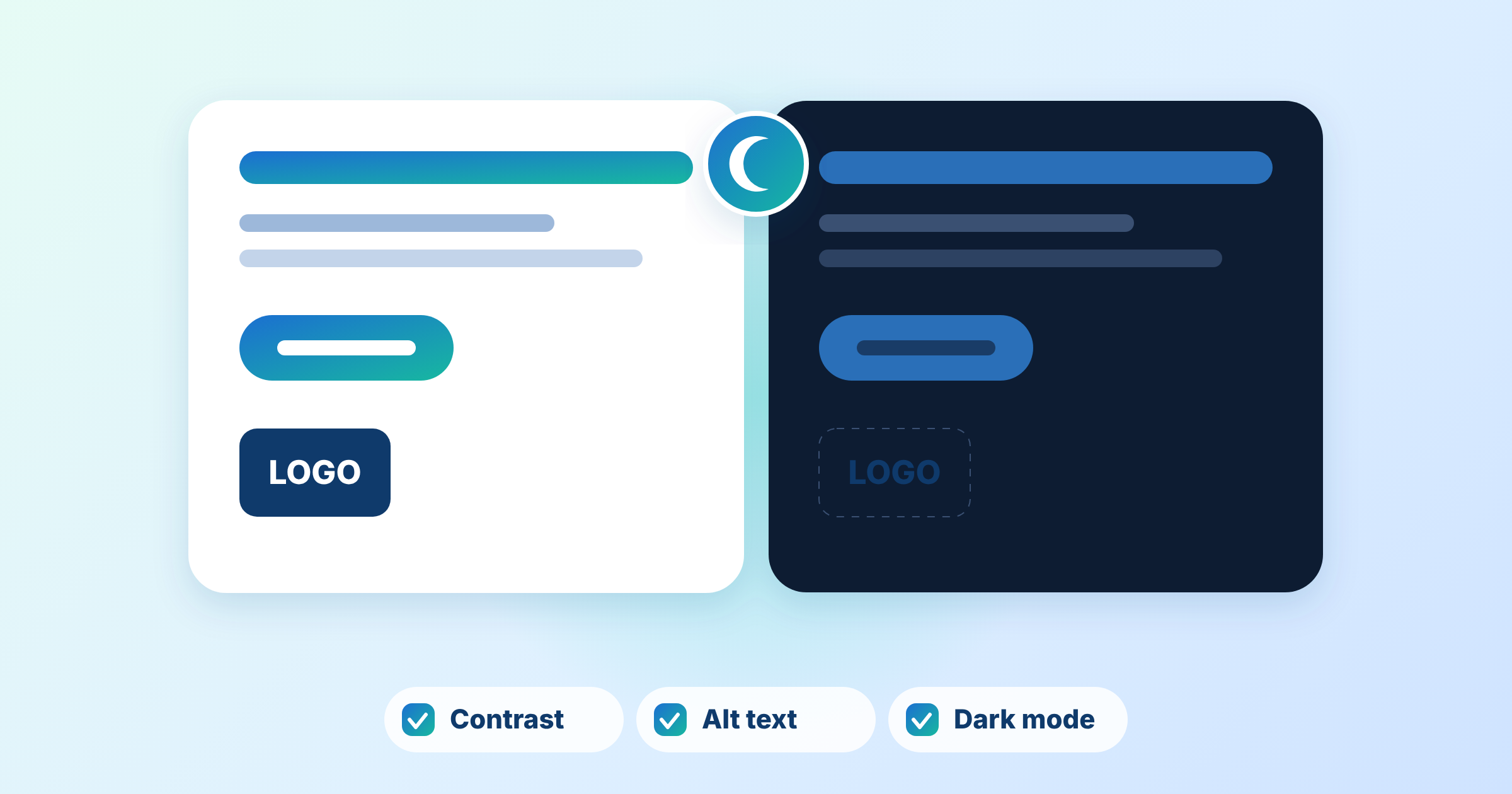
Email dark mode in Salesforce Marketing Cloud is a common source of “it looked fine when we tested it” complaints. A logo vanishes, a button turns pale or a light background becomes a dark one. The email was not broken in light mode. A mail client changed it after you sent.
This guide explains how email clients handle dark mode, what usually goes wrong and what to look at in your Marketing Cloud templates. It describes what to examine, not how to code it. Last reviewed: October 2026.
What Is Dark Mode in Email?
Dark mode* is a display setting that shows light text on dark backgrounds. Subscribers switch it on in their device or mail app. Email clients then react to it in one of three ways:
- No change: the client shows your email as designed
- Partial inversion*: the client darkens light backgrounds and adjusts some text colours
- Full inversion*: the client changes most colours, including ones you set on purpose
(Knak)
You do not control which one a subscriber gets. That is why dark mode is a design constraint and not a switch you flip.
How Email Clients Handle Dark Mode
Knak summarises typical behaviour by client:
| Client | No change | Partial inversion | Full inversion |
|---|---|---|---|
| Apple Mail | macOS | iOS | Not listed |
| Gmail | Desktop web | Android (some versions) | Android (older versions) |
| Outlook | Not listed | Mobile app | Windows desktop and Outlook.com |
(Knak)
Treat the table as a guide, not a guarantee. It does not cover Gmail on iOS or Outlook on Mac. Knak also warns that “neither partial nor full inversion is entirely predictable”, and behaviour changes when clients update. (Knak) Test current versions before you decide anything.
When Senders Can Control Dark Mode
Some clients let a sender supply their own dark styles instead of leaving the client to invert colours. One technical guide lists Apple Mail, iOS, Outlook.com, Outlook 2019 on macOS and the Outlook app on iOS as supporting this approach. Outlook for Android needs a separate method, and the author warns that support is incomplete and the code involved is complicated. (Martech Zone)
In practice, this means a template can look right in some clients and wrong in others, even with extra work. Many teams aim for a design that survives inversion first and add targeted dark styles only where a client supports them.
What Usually Goes Wrong
These are the failures teams meet most often:
- Disappearing logos: a dark logo with a transparent background vanishes on a dark background. Knak calls this the most common failure
- Halos on images: images with light edges show a pale outline on dark backgrounds
- Uneven sections: several different background colours can invert unevenly and make the email look patchy
- Hardcoded dark text: dark text fixed in the code can stay dark on a dark background
- Weak buttons: a button colour that works on white can lose contrast once colours shift
(Knak)
Dark mode can also break accessibility. Knak advises checking that call-to-action contrast still meets the WCAG ratio of 4.5:1 in both modes. See our guide to email accessibility in Salesforce Marketing Cloud.
Email Dark Mode in Salesforce Marketing Cloud
We could not find Salesforce documentation that describes a dark mode setting in Content Builder. Treat dark mode as a design and template question that your own team owns, and confirm what your account supports.
That has two consequences:
- Templates matter most: colours, logos and images set in a shared template affect every email built from it
- Testing must happen outside the editor: the Marketing Cloud preview does not tell you how every client will invert your email, so check results in real clients or a testing tool
Our guide to HTML email in Salesforce Marketing Cloud has a short section on dark mode. This article goes deeper on client behaviour and review.
Design Principles That Tend to Help
Knak’s recommendations are a useful starting point:
- Logos: prepare versions for light and dark backgrounds, or give the logo its own background colour
- Mid-tone colours: mid-tone backgrounds and buttons tend to survive inversion more predictably
- Fewer background colours: fewer distinct colours mean less uneven inversion
- Image edges: padding or a consistent edge treatment reduces halos
- Early review: designers and developers should agree colours before the build, because dark mode works best “as a design constraint, not a post-build fix”
(Knak)
Common Misunderstandings
- “Dark mode is one setting”: it is several behaviours that differ by client, device and version
- “We designed for it once, so we are done”: clients change, so results need rechecking
- “Transparent images solve everything”: transparency helps logos but can still leave halos and invisible dark artwork
- “Pure black and white are safest”: mid-tones often hold up better under inversion
- “Our preview looked fine”: the Marketing Cloud preview does not reproduce every client’s inversion
What to Check Before You Change Anything
A short review shapes the whole plan. Look at these areas first:
- Which clients your subscribers actually use, from your own reporting
- How your logo and key images look on dark backgrounds
- How many background colours your templates use
- Whether text colours are fixed in the template code
- Button and link contrast in both modes
- Who signs off dark mode testing before a template goes live
A structured review also surfaces template problems before they spread. See 10 Signs Your Marketing Automation Needs an Audit for the warning signs.
Going Deeper
- What Is HTML Email and How to Build It in Salesforce Marketing Cloud
- Email Accessibility in Salesforce Marketing Cloud
- Why Your Emails Break in Outlook and How to Fix It for Good
- Why Your Emails Break in Gmail and How to Fix It
- Email Testing Workflow in SFMC
Seeing your emails break in dark mode? Talk to our team.
Glossary
Dark mode: a display setting that shows light text on a dark background. Mail clients may leave an email unchanged or invert some or all of its colours.
Full inversion: a dark mode behaviour in which the client changes most colours in an email, including ones the sender set deliberately.
Partial inversion: a dark mode behaviour in which the client darkens light backgrounds and adjusts some text colours while leaving other elements alone.