
Building HTML email for Salesforce Marketing Cloud is not the same as building for the web or even for other email platforms. SFMC has a specific set of technical constraints that affect how CSS is applied, how personalisation logic works and how the final email renders across clients.
Miss these constraints and emails break silently: images that do not load, layouts that collapse, personalisation fields that return blank.
This article covers the technical fundamentals every developer and marketer should understand before building HTML email in SFMC.
What Is HTML Email?
HTML email is an email built with HyperText Markup Language (HTML), the same language used to build web pages. Unlike plain text email, HTML email supports formatting, images, colour, layout structure and interactive elements like buttons and links.
Most marketing emails are HTML emails. They are built from a combination of HTML for structure, CSS for styling and personalisation logic for dynamic content. In SFMC, that personalisation layer is handled by AMPscript*.
The key difference between HTML email and web HTML: email clients do not render HTML the way browsers do. CSS support is inconsistent across Gmail, Outlook, Apple Mail and mobile clients. This is why HTML email development follows different rules from web development.
HTML Email in Salesforce Marketing Cloud
HTML email in SFMC is built and managed through Content Builder*. Unlike some platforms that abstract the HTML away, SFMC gives you direct access to the underlying code. It also imposes constraints that do not exist in web development.
Three things make HTML email in SFMC distinct from other platforms:
- AMPscript personalisation:* SFMC uses its own server-side scripting language to handle dynamic content, conditional logic and data extension lookups. Not Liquid, not Handlebars.
- Content Builder asset management: images, templates and content blocks are hosted and managed within Content Builder, not externally
- SFMC processing at send time: links are rewritten for click tracking, open tracking pixels are injected and AMPscript is resolved before the email reaches the recipient’s inbox
Understanding these three layers is the foundation for building HTML email that works reliably in SFMC.
How SFMC Processes HTML Email Before Send
Before an email leaves SFMC, the platform processes the HTML. Understanding what happens at this stage prevents a category of bugs that are hard to diagnose after the fact.
What SFMC does to your HTML at send time:
- AMPscript is resolved:* all AMPscript expressions are evaluated and replaced with actual values from data extensions or subscriber attributes before the HTML is delivered to the receiving mail server
- Link tracking is applied: every hyperlink is rewritten to pass through SFMC’s tracking domain so click events can be recorded; this changes the actual URL in the delivered email
- Open tracking pixel is injected: a 1×1 pixel image is added to the email for open tracking; this is injected automatically and cannot be disabled for tracked sends
- Personalisation strings are resolved:
%%FirstName%%style strings are replaced with subscriber attribute values at send time
This processing means the HTML you upload to Content Builder* is not exactly what the recipient receives. Always use Send Preview in Content Builder to review the processed output before sending.
CSS in SFMC Emails: What Works and What Does Not
CSS support in SFMC email is constrained by two factors: what SFMC itself supports and what email clients support after delivery. Both matter.
Inline CSS Only for Core Styles
SFMC requires fully inline CSS for reliable rendering. External stylesheets linked via <link> tags are not supported. SFMC will not load external CSS at send time. (Salesforce Help)
CSS variables (--custom-property: value) are also not supported. SFMC processes HTML server-side and does not resolve CSS custom properties. Any styles using CSS variables will be ignored.
Style Blocks for Media Queries
<style> blocks in the <head> are supported in SFMC itself, but many email clients strip them on delivery. Gmail (webmail) is the most notable example.
The correct approach: use inline CSS for all core layout and typography and use a <style> block only for media queries that control responsive behaviour on mobile. This way, mobile responsiveness works where <style> is supported, while the inline fallback handles clients that strip it.
What to Avoid
- Shorthand CSS properties: some email clients do not support shorthand (for example,
padding: 10px 20px); use longhand (padding-top,padding-right,padding-bottom,padding-left) - Flexbox and CSS Grid: not supported in email clients. Use table-based layout instead.
- CSS animations and transitions: stripped by most email clients
:hoverpseudo-class: limited support; do not rely on it for critical interactions
HTML Structure for SFMC Emails
Email HTML structure is fundamentally different from web HTML. The constraints exist because of email client rendering engines, not SFMC itself. They affect every email you build in SFMC.
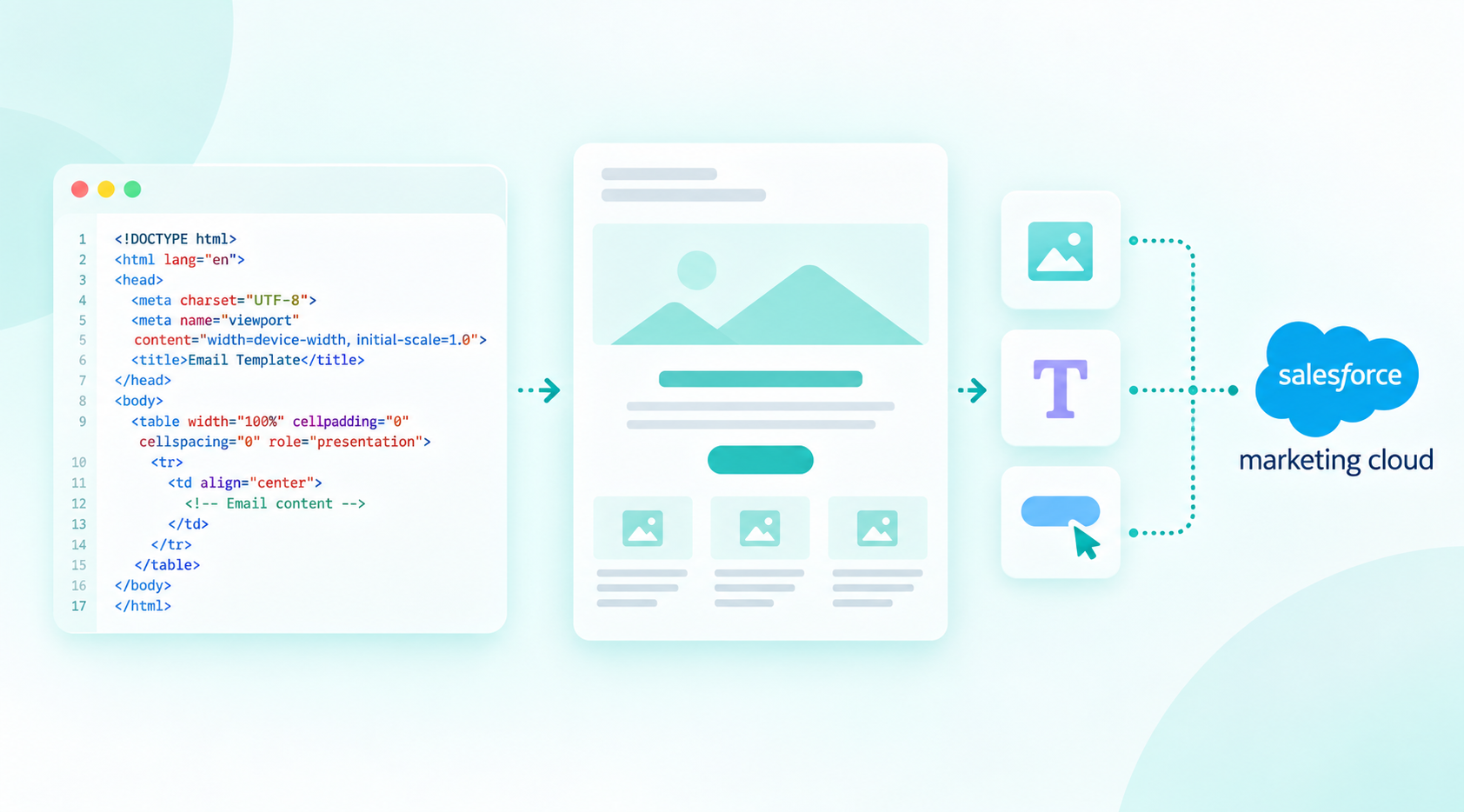
Start with the correct doctype and charset. Every HTML email should begin with a doctype declaration and UTF-8 charset:
<!DOCTYPE html>
<html lang="en">
<head>
  <meta charset="UTF-8">
  <meta name="viewport" content="width=device-width, initial-scale=1.0">
</head>
The doctype affects how email clients parse and render the HTML. UTF-8 charset prevents character encoding issues with special characters, accents and symbols. This is particularly important for non-English content.
Use table-based layouts. Tables remain the most reliable structure for email given inconsistent CSS support across clients. Use nested tables for multi-column layouts. (Email on Acid)
Set width attributes on table elements. Use HTML width attributes on <table> and <td> elements rather than CSS width where possible. These are more reliably respected across clients.
Standard width: 600px. Most email clients render a preview pane of around 600px. A maximum width of 600px is the standard for email body content, with responsive design handling narrower viewports.
Avoid <div> for layout. <div> elements do not guarantee consistent spacing and alignment across email clients. Use <td> for layout structure.
Always include a plain text version. SFMC sends multipart MIME emails by default: an HTML version and a plain text version. The plain text version is required for deliverability and is read by spam filters. Leaving it blank is a common mistake that affects inbox placement.
Set a preheader text. The preheader is the short text that appears after the subject line in inbox preview panes. If you do not set one explicitly in the HTML, email clients pull the first readable text from the email body. This is often an unsubscribe link, tracking code or navigation element. Add a hidden preheader span near the top of the <body>:
<span style="display:none; max-height:0; overflow:hidden;">
  Your preheader text goes here.
</span>
Keep preheader text under 90 characters. It should complement the subject line, not repeat it.
Code View in Marketing Cloud Next
If you are on Marketing Cloud Next (Growth or Advanced Edition), the Summer ’25 release introduced a Code View toggle in Content Builder. This allows you to create emails using custom HTML and CSS without being constrained to a template structure. You can also convert existing template-based emails into HTML format for detailed customisation.
For teams on classic Marketing Cloud Engagement, HTML editing is done via the HTML content block or by building custom templates directly in HTML. Custom HTML blocks in Content Builder are not editable in the drag-and-drop interface once HTML has been injected. They become static HTML blocks.
Images in SFMC Emails
Host images in Content Builder. Do not link to images on external servers that you do not control. If the external server goes down or the URL changes, images break in already-delivered emails. Content Builder provides stable, Salesforce-hosted URLs. (Salesforce Help)
Always set width and height attributes. When images are blocked (which is the default in many email clients on first open), the email layout should not collapse. Explicit width and height attributes on <img> tags preserve layout when images are blocked.
Write meaningful alt text for every image. Alt text serves two purposes: accessibility for subscribers using screen readers and fallback content when images are blocked. Empty alt text on decorative images is acceptable; meaningful alt text on content images is required.
Avoid image-only emails. Emails that are entirely or predominantly images have poor accessibility, high spam filter scores and deliver a blank experience to subscribers with images blocked. Include live text for all key content.
AMPscript in HTML Email
AMPscript* is SFMC’s proprietary server-side scripting language for personalisation. It runs before the email is delivered and replaces expressions with actual values.
Basic personalisation:
%%=AttributeValue("FirstName")=%%Lookup from a data extension:
%%=Lookup("ProductCatalogue","ProductName","ProductID",productID)=%%Conditional content:
%%[ IF @tier == "Gold" THEN ]%%
  <p>Thank you for being a Gold member.</p>
%%[ ELSE ]%%
  <p>Thank you for being a member.</p>
%%[ ENDIF ]%%
Always define fallback values. If a subscriber attribute or data extension field is empty, AMPscript returns blank, which results in “Dear ,” or similar broken personalisation in the delivered email. Use the Empty() function or a default value to handle missing data.
AMPscript vs dynamic content blocks. For simple show/hide logic based on a subscriber attribute, dynamic content blocks (available in the Content Builder drag-and-drop interface) are easier to maintain and do not require code. Use AMPscript when logic is complex, involves data extension lookups or requires calculations.
Dark Mode Considerations
Dark mode is enabled by default on a growing share of devices. Gmail on iOS and Android, Apple Mail and Outlook on Mac all apply dark mode transformations to HTML email. They do not all do it the same way.
What dark mode does to your email:
- Inverts or shifts background colours and text colours automatically
- Can make light-coloured logos or images with transparent backgrounds disappear
- May invert image colours if images do not have explicit background colours declared
Basic dark mode safeguards:
- Declare explicit background colours on
<table>and<td>elements. Do not rely on the default white background. - Use
role="img"andaria-labelon logo images so they are treated correctly by assistive technology in dark mode - For logos and brand images on transparent backgrounds, use a dark-mode-safe version or add a white background rectangle behind the image
- Test dark mode rendering in Email on Acid or Litmus before send. SFMC’s built-in preview does not simulate dark mode.
Dark mode is not a reason to avoid HTML email. It is a reason to test it. Most dark mode issues are fixable with a small number of targeted CSS declarations in your <style> block. (Email on Acid)
Testing HTML Email in SFMC
Send Preview in Content Builder. Always preview using a specific subscriber record or test data. Do not use the generic preview, which does not resolve AMPscript. Send Preview shows the processed output with actual data, which is the closest view to what a subscriber receives.
Cross-client rendering test. SFMC’s built-in preview does not show how the email renders in different email clients. Use Email on Acid or Litmus to test rendering across Gmail, Outlook, Apple Mail and mobile clients before any live send.
Test with images blocked. Open the email in a client with images disabled and confirm the layout holds and alt text is meaningful. This is how a significant portion of subscribers will first see the email.
Test AMPscript fallbacks. Run Send Preview with a subscriber record that has empty attributes to confirm fallback values render correctly instead of blank fields.
Test the plain text version. Review the plain text version in Send Preview to confirm it is readable and contains all key information, particularly any links.
Common HTML Email Mistakes in SFMC
- Using external CSS or CSS variables: both are unsupported. Styles will not render.
- Not inlining CSS before upload: if you are working from a master stylesheet, inline all CSS before uploading to Content Builder; tools like Litmus Builder or Mailchimp’s CSS inliner can automate this
- Hosting images on external servers: images break if the external URL changes or the server goes down
- Not testing with images blocked: layout collapse when images are blocked is one of the most common and most avoidable issues
- Missing fallback values in AMPscript: blank personalisation fields are noticed by subscribers and affect trust; always test with empty data
- No plain text version: blank plain text versions affect deliverability and inbox placement
- AMPscript syntax errors causing send failure: a malformed AMPscript expression can cause the email to fail at send time or deliver blank; always validate AMPscript in Send Preview before scheduling
Going Deeper
- Step-by-Step Guide: Setting Up AMPscript in Your SFMC Emails
- How to Build a Reliable Email Testing Workflow in SFMC
- Why Your Emails Break in Gmail and How to Fix It
- Why Your Emails Break in Outlook and How to Fix It for Good
- How to Use Email Studio in SFMC: A Step-by-Step Guide
Need help building or auditing HTML email templates for your SFMC environment? Talk to our team.
Glossary
AMPscript: Salesforce Marketing Cloud’s proprietary server-side scripting language used to personalise email and landing page content. AMPscript expressions are evaluated and replaced with actual values at send time, before the email is delivered.
Content Builder: the centralised asset management tool in SFMC used to create and store email templates, content blocks, images and code snippets. All email assets should be hosted in Content Builder rather than on external servers.
Dark mode: a display setting that shifts an interface to lighter text on darker backgrounds. Email clients including Gmail, Apple Mail and Outlook on Mac apply dark mode transformations to HTML emails, which can affect background colours, text colours and image rendering. Requires targeted CSS and testing to handle correctly.
Dynamic content block: a content block in SFMC that displays different content based on subscriber attributes or data extension values, configured via a point-and-click interface without requiring AMPscript.
Inline CSS: CSS styles written directly in the style attribute of individual HTML elements, rather than in a <style> block or external stylesheet. Inline CSS is required for reliable rendering in email clients and in SFMC.
Marketing Cloud Next: Salesforce’s current flagship marketing platform (Growth and Advanced Editions). Introduced a Code View feature in the Summer ’25 release, allowing custom HTML and CSS email creation without template constraints.
Open tracking pixel: a 1×1 transparent image injected into emails by SFMC to record open events. Automatically added to all tracked sends; cannot be disabled for tracked email sends.
Plain text version: a text-only version of the email sent alongside the HTML version in a multipart MIME message. Required for deliverability; read by spam filters and used by email clients that do not support HTML.
Preheader text: a short line of text placed near the top of the email HTML body that appears in inbox preview panes after the subject line. Should be set explicitly to prevent email clients from pulling unsubscribe links or tracking code as the preview text. Recommended length: under 90 characters.
Send Preview: a feature in Content Builder that shows the processed email output for a specific subscriber record, resolving AMPscript expressions and personalisation strings before the email is sent. The most reliable way to review the final email before sending.