

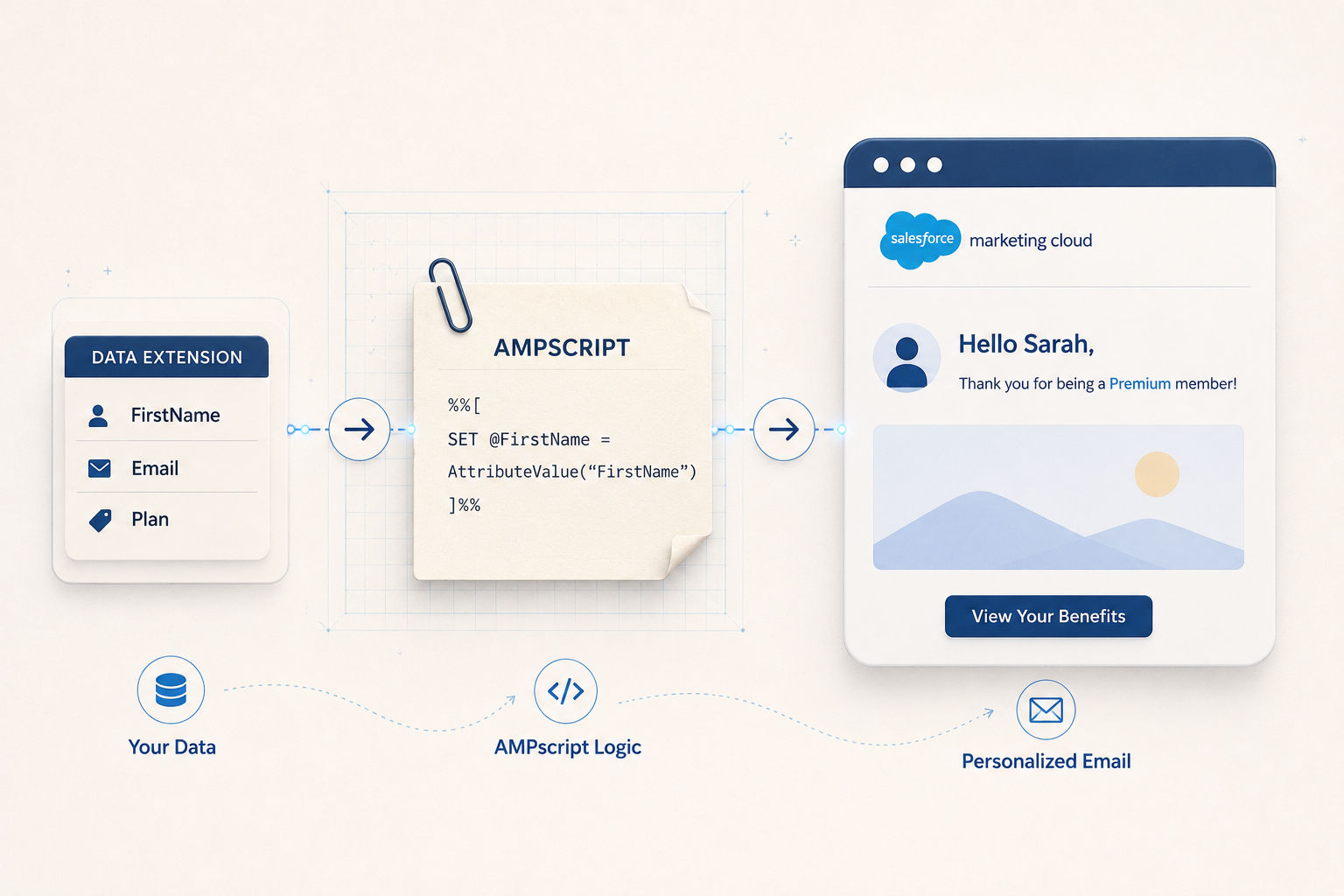
AMPscript is the scripting language built specifically for Salesforce Marketing Cloud. It runs at send time — meaning every subscriber gets a version of your email rendered with their own data, pulled live from your data extensions at the moment the email is generated.
This guide covers how to set up AMPscript in SFMC from scratch, with real code examples for the most common use cases — personalisation, conditional content, fallback values, and dynamic images.
Why Use AMPscript in SFMC?
Most email personalisation stops at first name insertion. AMPscript goes further:
- Pull data from any data extension — not just subscriber profile fields, but transactional data, loyalty records, product catalogues, and more
- Render conditional content blocks — show different content to different segments within the same template
- Generate dynamic values at send time — unique codes, expiry dates, calculated fields
- Handle missing data gracefully — set fallback values so emails never render blank fields to subscribers
- Build one template that does the work of many — a single AMPscript-powered template can produce effectively different emails for every subscriber segment
The teams getting measurable lift from personalisation in SFMC are almost always using AMPscript. First name in a subject line is table stakes — AMPscript is where the real engagement gains live.
Before You Start: How AMPscript Works in SFMC
AMPscript code lives inside your email HTML and is processed by SFMC’s send engine before the email is delivered. Two key syntax patterns to know:
- Code blocks —
%%[ ... ]%%— where you declare variables and run logic - Output tags —
%%=v(@variableName)=%%— where you print a variable’s value into the email
AMPscript is not case sensitive, but consistency in naming variables makes your code easier to read and debug. Always declare variables with var before setting them with set.
Step 1: Open the HTML Editor in Content Builder
In SFMC, go to Content Builder → Create → Email Message → HTML Paste. AMPscript works in both drag-and-drop and HTML email editors, but the HTML editor gives you full control over where code blocks sit in the template structure.
Place your AMPscript code blocks at the top of the <body> tag — before any visible content. This ensures all variables are set before they are referenced anywhere in the template.
Step 2: Declare and Set Variables
Every AMPscript block starts with declaring your variables, then setting their values. Here is the basic structure:
%%[

var @firstName, @lastName, @fullName, @contactKey

set @contactKey = [ContactKey]

set @firstName = Lookup('Contact_Data', 'First_Name', 'Contact_Key', @contactKey)
set @lastName = Lookup('Contact_Data', 'Last_Name', 'Contact_Key', @contactKey)
set @fullName = Concat(@firstName, ' ', @lastName)

]%%
[ContactKey] is a system variable — SFMC automatically populates it with each subscriber’s Contact Key at send time. The Lookup() function retrieves a field value from a data extension by matching a key.
Step 3: Add Fallback Values for Missing Data
This is the step most AMPscript guides skip — and it is the most important one in practice. If a data extension lookup returns empty (because the subscriber has no record, or the field is null), your email will render a blank space where the name should be.
Always set a fallback:
%%[

var @firstName

set @firstName = Lookup('Contact_Data', 'First_Name', 'Contact_Key', [ContactKey])

if Empty(@firstName) then
  set @firstName = 'there'
endif

]%%

Hi %%=v(@firstName)=%%,
If @firstName is empty, the email renders “Hi there,” instead of “Hi ,” — a small detail that matters at scale.
Step 4: Look Up Unique Codes from a Data Extension
A common AMPscript use case is inserting a unique code, voucher, or reference number from a data extension — one row per subscriber:
%%[

var @code, @contactKey

set @contactKey = [ContactKey]

set @code = Lookup('Stored_Codes', 'code', 'CONTACT_KEY', @contactKey)

if Empty(@code) then
  set @code = 'CONTACT US FOR YOUR CODE'
endif

]%%

Your unique code: %%=v(@code)=%%
The fallback ensures subscribers without a matching record still receive a usable email rather than a blank field.
Step 5: Render Conditional Content Blocks
Conditional content is where AMPscript delivers the most value — showing different content to different subscriber segments within one template:
%%[

var @loyaltyTier

set @loyaltyTier = Lookup('Loyalty_Data', 'Tier', 'Contact_Key', [ContactKey])

]%%

%%[ if @loyaltyTier == 'Gold' then ]%%

  <p>As a Gold member, you have early access to our sale. Shop now before it opens to everyone.</p>

%%[ elseif @loyaltyTier == 'Silver' then ]%%

  <p>Your Silver membership gives you 20% off this weekend. Use code SILVER20 at checkout.</p>

%%[ else ]%%

  <p>Join our loyalty programme and start earning rewards on every purchase.</p>

%%[ endif ]%%
One template. Three different emails. No manual segmentation required.
Step 6: Format Dates Dynamically
If your data extension contains date fields, use FormatDate() to control how they display:
%%[

var @expiryDate, @formattedDate

set @expiryDate = Lookup('Offer_Data', 'Expiry_Date', 'Contact_Key', [ContactKey])
set @formattedDate = FormatDate(@expiryDate, 'DD MMMM YYYY')

]%%

Your offer expires on %%=v(@formattedDate)=%%.
This renders dates like “31 December 2026” instead of the raw timestamp format stored in the data extension.
Step 7: Use Dynamic Image URLs
AMPscript can control which image a subscriber sees — pulling image URLs directly from a data extension:
%%[

var @productImage, @productName

set @productImage = Lookup('Product_Recs', 'Image_URL', 'Contact_Key', [ContactKey])
set @productName = Lookup('Product_Recs', 'Product_Name', 'Contact_Key', [ContactKey])

]%%

<img src="%%=v(@productImage)=%%" alt="%%=v(@productName)=%%" width="600" />
Combined with a product recommendation data extension populated by your CDP or e-commerce platform, this renders a genuinely personalised product image for every subscriber — no manual content variants required.
Step 8: Preview and Test Before Sending
AMPscript does not render in email thumbnails in Content Builder — you will see the raw code in preview mode. Use Preview and Test → Test Send with a real subscriber record to validate that your lookups are returning the correct values.
Before any live send:
— Test with a subscriber who has a complete data extension record — Test with a subscriber who has a missing or null record — to validate fallbacks — Check the rendered output in both desktop and mobile preview — Send a test to your own inbox to confirm final rendering
Common AMPscript Errors and How to Fix Them
Blank fields in the rendered email — your lookup is returning null and you have no fallback. Add an if Empty() check with a default value.
“Lookup failed” error — the data extension name or field name in your code does not exactly match what is in SFMC. AMPscript is not case sensitive but spaces and underscores must be exact.
Curly quotes breaking code — if you write AMPscript in Word or Google Docs and paste it into SFMC, curly quotes (') replace straight quotes (') and the code will fail. Always write AMPscript directly in the SFMC editor or a plain text editor.
Variable returning wrong value — check that your lookup key field matches the correct ContactKey format in your data extension. A mismatch between subscriber key formats is the most common cause.
Conclusion
AMPscript is the layer between a generic SFMC email and one that actually responds to who each subscriber is and what they have done. The basics — variable declaration, lookups, fallbacks, and conditionals — cover the majority of real-world personalisation use cases and are within reach of any marketer willing to work with code.
Start with the fallback pattern from Step 3. It is the single habit that separates AMPscript that works reliably in production from AMPscript that occasionally breaks at scale.
For a broader look at how personalisation fits into SFMC campaign strategy, the SFMC best practices guide covers the full picture. If you want help building AMPscript logic for a specific use case, get in touch →