

Reading time: 6 min
Marketing Cloud Connect (MCC) is Salesforce’s native integration between Salesforce CRM (Sales Cloud or Service Cloud) and Salesforce Marketing Cloud. It allows data to flow between the two platforms without custom development – syncing CRM contacts, enabling Journey Builder to react to CRM events, and feeding email engagement data back to sales teams.
For teams already on the Salesforce ecosystem, it’s the obvious starting point – and in many cases, the right one.
But MCC has real constraints that aren’t obvious until you’re already deep into your setup. Understanding them early saves a significant amount of rework. If you’re still deciding whether to use MCC or an API-based approach, this guide on SFMC native connectors vs API integration covers the decision framework.
What MCC Does Well
Before getting into the limitations, it’s worth being clear about where MCC earns its place.
- Contact and lead sync – Sales Cloud and Service Cloud records flow into Marketing Cloud automatically on a poll schedule (15 minutes, 30 minutes, or 1 hour)
- Native Journey Builder activities – Update CRM records, create tasks, and open or close cases directly inside Journey Builder without custom development, provided the integration is configured to support it
- Send tracking back to CRM – When enabled in MCC Tracking settings, email send and engagement data syncs back to CRM contact records – but only for sends made from a Salesforce Data Extension, not all SFMC sends
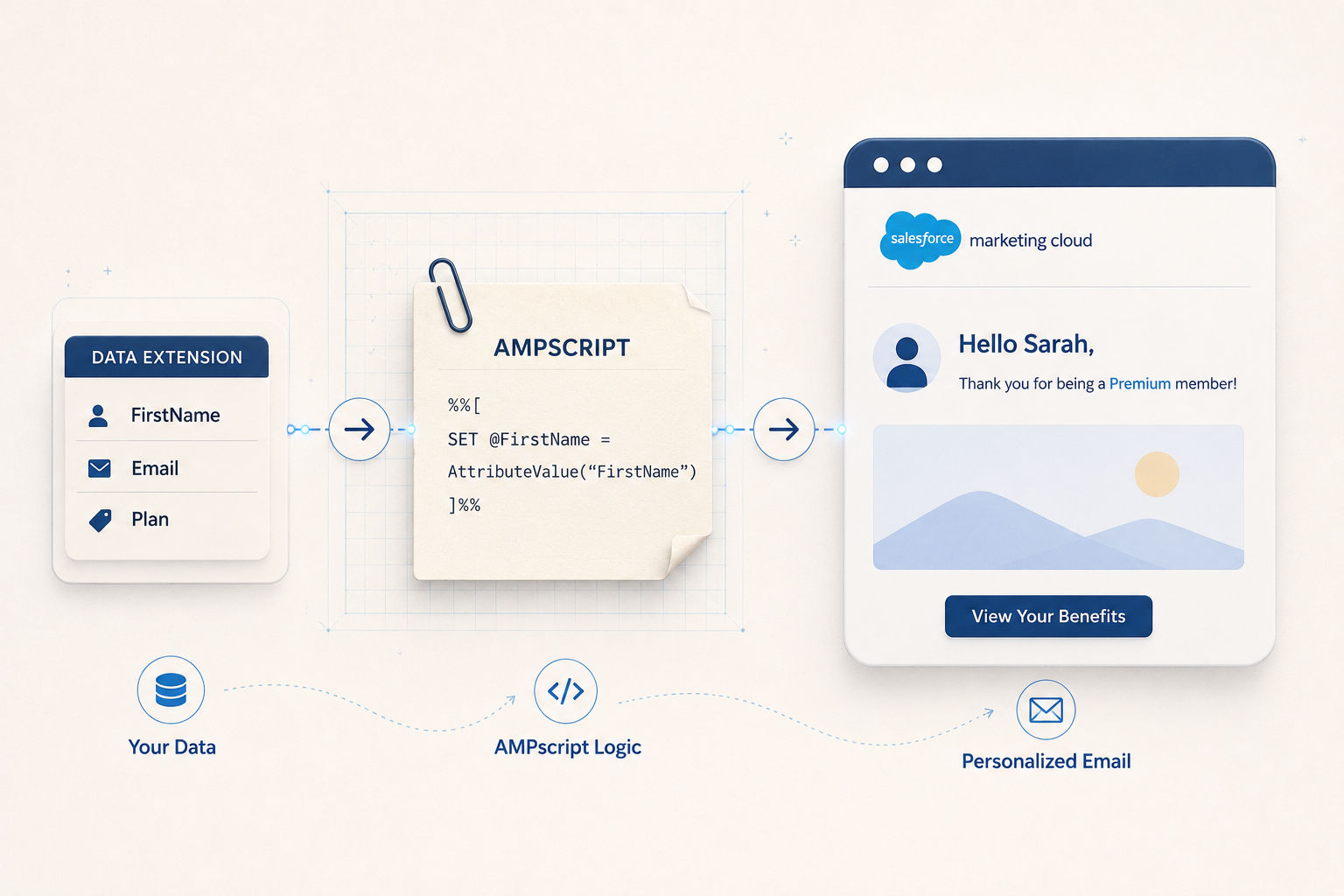
- AMPscript personalization from synced data – AMPscript can reference data from Synchronized Data Extensions at send time, pulling CRM field values into email content without a separate data pipeline. Data freshness is bound by the sync poll schedule
- No custom development required – A configured MCC setup is maintainable by a marketing ops team without developer support
For organizations on Salesforce CRM running standard email journeys, MCC covers most of what they need.
MCC Limitations
1. Synchronized Data Extensions are not sendable
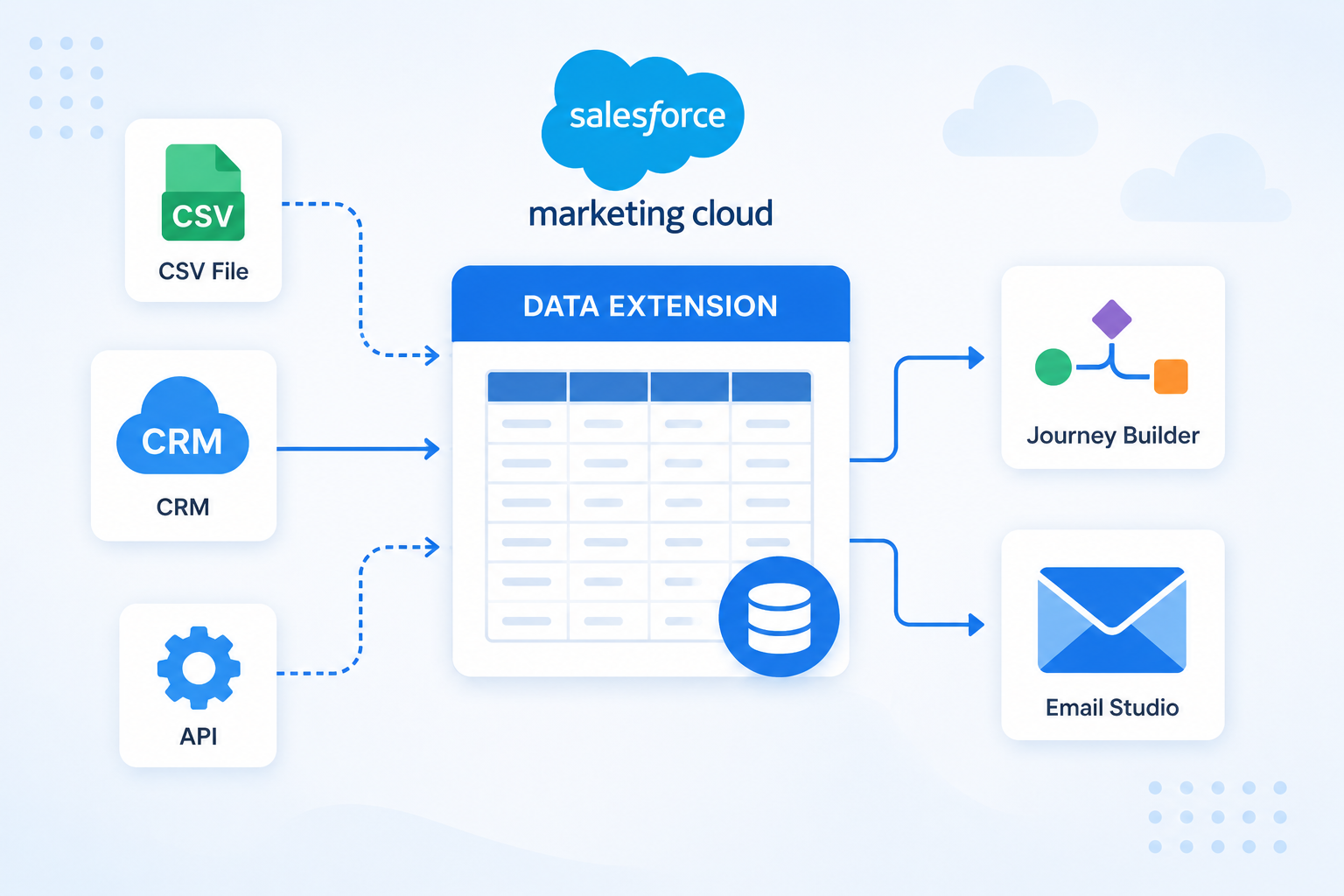
When CRM objects sync into Marketing Cloud, they land in Synchronized Data Extensions – but these cannot be used directly as a send audience. To send to this data, you need a SQL query via Automation Studio to copy records into a standard sendable Data Extension first. This adds an automation layer that teams often underestimate during planning. (SFMC Simplified)
2. Syncing Contact, Lead, or User objects creates billable contacts immediately
As soon as you start syncing Contact, Lead, or User objects from Salesforce CRM, those records are counted as billable Marketing Cloud contacts – even if you have never sent them anything. For organisations with large CRM databases, this can push contact counts over licence limits unexpectedly. The recommended safeguard is to configure a checkbox filter on the CRM side before the sync begins, so only records flagged for marketing are pulled across. (Mateusz Dąbrowski)
3. Sync objects cannot be removed individually
Once you start syncing a CRM object, you cannot delete that sync in isolation. To remove it, you have to disconnect Marketing Cloud Connect entirely – which resets all object integrations across your account. Every integration field then needs to be manually reconfigured, and any SQL query activities referencing those fields will break until updated and re-run. (Nobuyuki Watanabe)
4. Multi-Org configuration cannot be undone
If your organisation operates across multiple Salesforce CRM orgs, you may need Multi-Org support in MCC. This configuration can only be enabled by Salesforce Support, and once enabled, it cannot be reversed without reprovisioning your Marketing Cloud account entirely. (Mateusz Dąbrowski)
5. Synchronized Data Extensions are only available to the parent business unit
By default, synced data is only accessible to the top-level business unit. Sharing it with child business units requires creating filter activities that copy the data into shared Data Extensions – adding more automation complexity for multi-BU setups. (Mateusz Dąbrowski
6. Contact key conflicts when MCC is added to an existing SFMC instance
MCC uses Salesforce CRM record IDs as Subscriber Keys in Marketing Cloud. If your SFMC instance already has contacts identified by email address as the Subscriber Key, enabling MCC will create duplicate contact records – one per ingestion source. Resolving this requires a subscriber key migration process before the integration goes live, which involves SQL queries, SSJS scripting, and careful handling of subscription preferences to avoid data loss. (Mission in Motion)
Signs You May Have Outgrown MCC
- Your team is running multiple SQL queries just to prepare sendable audiences from synced data, and the automation chain is becoming hard to maintain
- You need real-time sends triggered by external system events, not the 15-minute poll cycle
- You are managing multiple CRM orgs and running into Multi-Org configuration limits
- Your data model has grown beyond standard CRM objects and MCC can no longer represent it accurately
- Your tech stack includes non-Salesforce systems that need to connect to Marketing Cloud – MCC does not reach outside the Salesforce ecosystem
None of these mean MCC was the wrong choice at the start. Most mature SFMC implementations use MCC alongside API integrations – MCC for CRM data sync, API for everything else. The question is whether your current setup reflects what your architecture actually needs.
Getting the Setup Right Before You Start
The limitations above are not reasons to avoid MCC. They are reasons to plan your MCC configuration carefully before you begin – particularly around contact key mapping, which objects you sync, and whether Multi-Org support is required.
Decisions made during initial setup are significantly harder to change later than decisions made on paper beforehand.
Not sure how to structure your MCC setup? Get in touch – we help SFMC teams get the architecture right before it becomes a problem.
Related reading: