
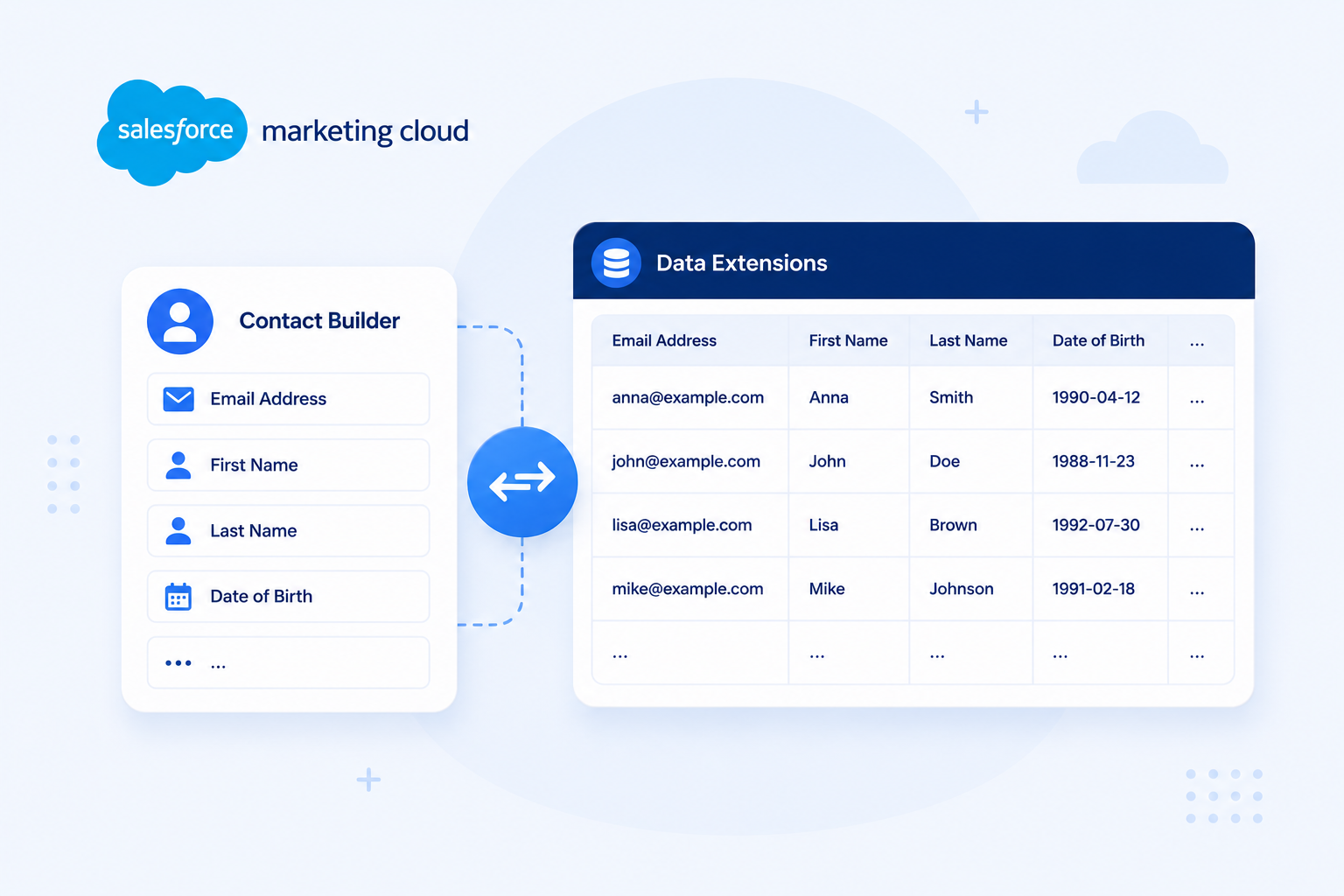
Contact Builder and data extensions are two of the most foundational components in Salesforce Marketing Cloud (SFMC). They are often discussed together, but they serve different roles. Confusing the two, or not understanding how they interact, leads to data model problems that are difficult to fix after sends have gone out.
This article explains what each one does, how they work together, and what to get right before you start building.
What Contact Builder Is
Contact Builder is the SFMC tool where you define and manage the contact data model. It is not a data store in itself. Contact Builder does not hold data. It defines the structure and relationships that tell SFMC how your data fits together and how to identify individual contacts across channels.
The core concepts inside Contact Builder:
- All Contacts: the master record of every contact SFMC has ever interacted with, identified by subscriber key. Every send, every journey entry, every channel interaction traces back to a record in All Contacts.
- Attribute groups: collections of linked data extensions that share a relationship with the contact record. Attribute groups tell SFMC how to join your data together when building audiences or personalising content.
- Population: a 1:1 relationship between a data extension and the contact record, used to define a discrete subgroup of contacts. Salesforce recommends limiting populations to three or fewer and reserving them for specific use cases such as field-level encryption or API entry sources in Journey Builder not as a general segmentation tool.
- Cardinality: the relationship type between data extensions in Contact Builder. There are four types:
- 1:1: each contact maps to one record in the linked DE; used for demographic or profile data
- One-to-many: one contact maps to multiple records in the linked DE; used for transactional data such as orders or events
- Many-to-many: multiple records in one DE map to multiple records in another; used for complex relational data such as customers linked to multiple products across multiple orders
- Population: a special 1:1 relationship that defines a master subgroup of contacts within the account
What Data Extensions Are in This Context
Data extensions are tables that store actual data. They exist independently of Contact Builder and can hold any structured information your implementation requires: subscriber attributes, purchase history, product catalogues, preference flags, or event logs.
A data extension does not need to be linked to Contact Builder to be useful. Many data extensions in a typical SFMC implementation are non-sendable and unlinked. They serve as lookup tables, intermediate tables for Automation Studio SQL workflows, or reference data for AMPscript* personalisation.
A data extension becomes part of the contact model only when you link it into Contact Builder via an attribute group and configure a send relationship. That link is what enables SFMC to use the data extension as an audience for sends and to identify which contact each record belongs to.
How They Work Together
Contact Builder is the schema layer. Data extensions are the data layer.
Without Contact Builder, SFMC has no way to understand the relationships between your data extensions or to identify contacts consistently across channels. Without data extensions, Contact Builder has nothing to reference.
The relationship works like this:
- All Contacts sits at the centre of the contact model. Every contact in SFMC has a record here, identified by subscriber key.
- Attribute groups connect data extensions to the contact model. Each attribute group links one or more data extensions and defines how they relate to the contact record.
- Linked data extensions inherit the contact relationship defined in their attribute group. A sendable linked DE can be used as an audience for email, SMS, or journey entry. An unlinked DE cannot.
Non-sendable, unlinked data extensions operate outside this structure. They store data but do not participate in contact identification or sending. This is intentional for data like product catalogues, tier tables, or staging tables used in Automation Studio.
When You Need to Link a Data Extension to Contact Builder
Not every data extension needs to link to Contact Builder. Understanding when linking is required saves unnecessary complexity.
Link required:
- Sending email or SMS from Email Studio using the DE as the audience
- Using the DE as a Journey Builder entry source
- Building audience segments in Audience Builder that reference the DE
- Personalizing content using attributes from the DE in a cross-channel context
Link not required:
- Lookup tables referenced by AMPscript at send time
- Intermediate tables used in Automation Studio SQL Query Activities
- Staging tables for data imports before transformation
- Any DE used purely for data storage or processing, not sending
A common pattern: Automation Studio runs a SQL query that joins multiple source DEs, writes the output to a sendable DE that is linked to Contact Builder, and Journey Builder uses that linked DE as its entry source. The source DEs do not need to be linked. Only the output DE does.
Common Mistakes
1. Creating a sendable DE without configuring the send relationship The DE gets created, data gets imported, and the send fails because SFMC cannot map the subscriber key. The send relationship must be configured at DE creation, not as an afterthought.
2. Linking the wrong field into the contact model If the field you link as the subscriber key does not match the subscriber key in All Contacts, SFMC creates duplicate contact records. Duplicates inflate your contact count and create reporting issues that are difficult to untangle.
3. Using email address as the subscriber key Email address seems like the obvious choice, but it causes problems when contacts change their email or when the same person appears across multiple channels with different identifiers. A unique, stable ID (a CRM ID or system-generated key) is the correct choice for subscriber key in most implementations.
4. Not planning the contact model before building data extensions Contact model decisions affect every DE you build afterward. Changing the contact model after active sends have gone out risks breaking existing journeys and audience queries. Define the model first, then build the DEs.
What to Set Up First
The correct build order matters. Setting up data extensions before defining the contact model in Contact Builder creates rework.
The recommended sequence:
- Define the contact model in Contact Builder: identify your subscriber key, map your data sources, and define attribute groups before creating any sendable DEs
- Create data extensions with the correct schema: field names, data types, primary key, and sendability configured at creation
- Link sendable DEs into Contact Builder: add them to the appropriate attribute group and configure the send relationship
- Validate before sending: confirm the subscriber key field maps correctly to All Contacts before using the DE in a live send or journey
Going Deeper
- What Is a Data Extension in Salesforce Marketing Cloud?
- How Long Does Salesforce Marketing Cloud Implementation Take?
- What Is Salesforce Marketing Cloud?
Not sure how to structure your SFMC contact model or data extensions? Talk to our team.
Glossary
All Contacts: the master contact record in SFMC, containing every contact the platform has interacted with. Each contact has a unique subscriber key. All sends and journey interactions trace back to a record in All Contacts.
AMPscript: Salesforce Marketing Cloud’s proprietary scripting language, used to personalise email and landing page content at the individual level by pulling values from data extensions or system attributes.
Attribute group: a collection of linked data extensions in Contact Builder that share a defined relationship with the contact record. Attribute groups tell SFMC how to join data when building audiences or personalising content.
Cardinality: the relationship type between data extensions in Contact Builder. The four types are: 1:1 (one contact, one record), one-to-many (one contact, multiple records), many-to-many (multiple records in each DE linked to each other), and population (a special 1:1 relationship defining a master contact subgroup).
Population: a specific cardinality type in Contact Builder that defines a discrete subgroup of contacts with a 1:1 relationship to a linked data extension. Salesforce recommends limiting populations to three or fewer per account and using them only for specific use cases such as field-level encryption or API entry sources in Journey Builder.
Send relationship: the configuration that links a sendable data extension to the SFMC contact model, mapping a field in the DE to the All Subscribers list. Required before SFMC can use the DE as a send audience.
Subscriber key: a unique identifier SFMC uses to identify individual contacts across the platform. Should be a stable, unique ID rather than an email address.