
Salesforce Marketing Cloud Automation Studio is the backend workflow engine inside SFMC. It handles data imports, SQL-based transformations, file transfers, and scheduled sends: the infrastructure layer that keeps your marketing data clean, current, and ready to act on.
If Journey Builder is the customer experience layer, Automation Studio is what runs underneath it. Most well-run SFMC implementations use both tools in combination, with Automation Studio preparing the data and Journey Builder delivering the communication.
What Is Automation Studio?
Automation Studio is a workflow tool that lets you chain data activities together and run them on a schedule or in response to a file event. It does not interact with customers directly. There are no decision splits, no personalised paths, and no real-time behavioural triggers.
When to use Automation Studio:
- Processing and transforming data before it is used in sends or journeys
- Importing data from external systems into SFMC on a recurring schedule
- Running SQL queries to build segmented audiences
- Exporting data out of SFMC for reporting or downstream system feeds
- Scheduling recurring email sends that do not require journey logic
Automation Studio vs Journey Builder
The core distinction: Automation Studio runs on a clock. Journey Builder runs on a customer. For a full breakdown of when to use each, see Automation Studio vs Journey Builder: When to Use Each in SFMC.
How Automation Studio Works
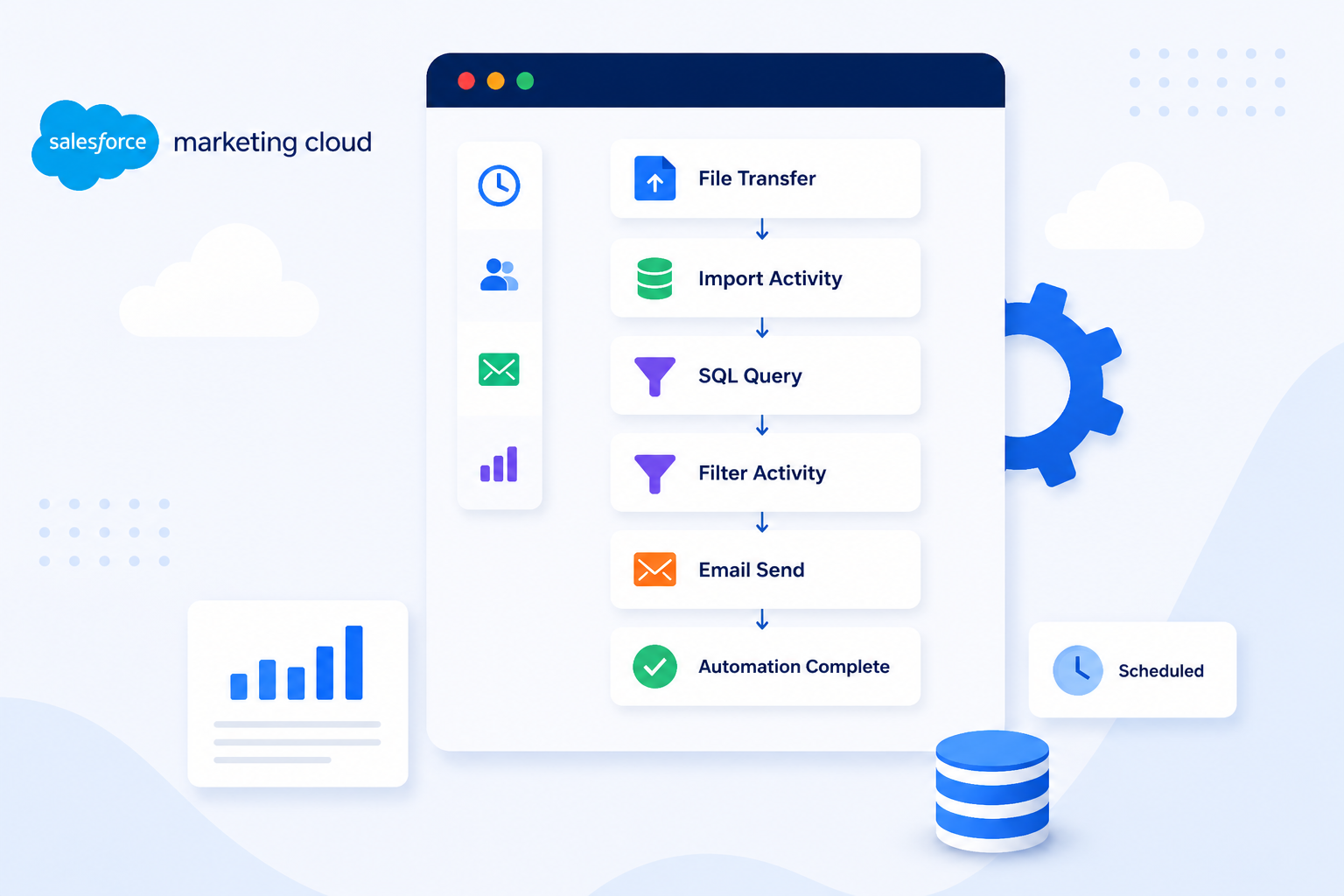
Every automation in Automation Studio is built from activities. Each activity performs one task. You chain activities together in sequence to form a workflow, and the automation runs those activities in order when triggered.
Trigger types:
- Scheduled: the automation runs at a defined time and frequency: hourly, daily, weekly, or custom. Most data processing automations use a scheduled trigger.
- File Drop: the automation fires automatically when a file appears at a specified FTP* or SFTP* location. Used for data feeds from external systems where the file arrival time is variable.
- Run Once: executes the automation immediately on demand. Useful for ad hoc data processing or testing before scheduling.
If an activity fails, the automation stops at that point by default. Subsequent activities do not run until the failure is resolved and the automation is restarted.
Components of Automation Studio
SQL Query Activity
Queries one or more data extensions* using SQL and writes the output to a target data extension. This is the most commonly used activity for data segmentation, transformation, and audience building. (Salesforce Trailhead)
SFMC SQL is a subset of T-SQL. It supports standard SELECT statements, joins, aggregations, and conditional logic. It does not support stored procedures, INSERT, UPDATE, or DELETE statements. Query results overwrite or append to the target data extension depending on the configured action.
One critical constraint: SQL Query Activity has a hard 30-minute execution timeout. Queries that exceed this limit are automatically terminated. For large datasets, query design and data extension structure both need to account for performance from the start, not as an afterthought.
Import File Activity
Imports a delimited file (CSV or tab-separated) from an FTP or SFTP location into a specified data extension. You configure the file naming pattern, delimiter, and field mapping at setup.
Import File Activity is typically used to bring external data into SFMC on a schedule: CRM exports, transaction feeds, loyalty data, or customer attribute updates from upstream systems.
File Transfer Activity
Moves, renames, unzips, or decrypts files within the SFMC FTP or between FTP locations. File Transfer Activity usually runs before an Import File Activity to prepare the file for import: unzipping a compressed archive or decrypting a PGP-encrypted file before the import step reads it.
Data Extract Activity
Exports data from a data extension or send log out of SFMC to an FTP location in a delimited file format. Used to feed data into external reporting tools, data warehouses, or downstream systems that need SFMC send or contact data.
Filter Activity
Creates a filtered data extension* from an existing data extension using a point-and-click filter interface rather than SQL. Useful for simple audience subsets where SQL is not required.
For complex segmentation logic involving multiple conditions, joins across tables, or calculated fields, SQL Query Activity is more reliable and maintainable than Filter Activity.
Script Activity
Runs Server-Side JavaScript (SSJS*) within an automation workflow. Used for logic that cannot be handled by SQL alone: looping through records, calling external APIs, writing to multiple data extensions conditionally, or performing operations that require programmatic control.
Script Activity is the most flexible activity in Automation Studio but also the hardest to maintain. Use it when SQL Query Activity cannot solve the problem.
Verification Activity
Checks that a data extension meets a defined condition before the automation continues. For example: verify that an imported data extension contains more than zero rows before triggering a send. If the condition fails, the automation stops and can be configured to send an alert.
Verification Activity is an underused safeguard. Adding it before send activities prevents empty or malformed audiences from reaching the send step.
Wait Activity
Pauses the automation for a defined duration before the next activity runs. Used to introduce a delay between steps, for example, waiting for an upstream process to complete before a dependent query runs.
Common Use Cases
- Daily customer import: a nightly File Transfer and Import File sequence pulls updated customer records from an external CRM or data warehouse into SFMC contact data extensions
- Data segmentation: SQL Query Activities run on a schedule to refresh audience data extensions used as Journey Builder entry sources or Email Studio send audiences
- Data cleansing: SQL queries identify and suppress bounced, unsubscribed, or duplicate records from active sending audiences on a regular cycle
- Scheduled exports: Data Extract Activities export send performance data or contact attributes to an FTP location for ingestion by external reporting tools or data platforms
- Sync with external systems: Import File Activities process files dropped by external systems (e-commerce platforms, loyalty systems, billing platforms) and map the data into SFMC data extensions
- Scheduled reports: automations query engagement or send data and write outputs to data extensions that feed Analytics Builder dashboards or external BI tools
Best Practices
Naming conventions: use a consistent naming pattern for automations and activities that makes the purpose, frequency, and owner clear at a glance. A format like [FREQ]_[PURPOSE]_[TARGET] (for example, DAILY_IMPORT_CUSTOMER_PROFILE) is easier to manage at scale than freeform names.
Folder structure: organise automations into folders by function or business unit. An unstructured automation list becomes difficult to audit and maintain as the number of automations grows.
Error notifications: configure failure notifications for every production automation. Automation Studio has a built-in notification feature that sends an email when a job fails, but it must be set up manually and is not enabled by default. (Salesforce Help) Without notifications, failures go undetected until someone notices a downstream problem.
Scheduling: stagger automation schedules to avoid resource contention. Automations that run simultaneously compete for processing capacity, which can cause timeouts or slowdowns, particularly for SQL-heavy workflows. Leave buffer time between dependent automations to account for variable run durations.
Logging and documentation: document each automation’s purpose, trigger, activity sequence, dependencies, and data extension inputs and outputs. Automation Studio does not provide a native documentation layer. Without external documentation, automations become difficult to modify safely, particularly when the original builder is no longer on the team.
Data retention on intermediate data extensions: set data retention policies on data extensions used as intermediate staging tables in automation workflows. Without retention policies, intermediate data extensions accumulate records indefinitely, increasing storage costs and query times.
Common Mistakes
- Long-running SQL queries: SQL Query Activity has a hard 30-minute execution timeout; queries that exceed this limit are automatically terminated. Poorly optimised queries with large joins or missing filters are the most common cause. Review query performance regularly, set data retention policies on source data extensions to limit input volume, and index data extensions used in frequent joins
- Chaining too many activities in one automation: long activity chains are harder to debug when a step fails; breaking complex workflows into smaller, modular automations with clear handoff points makes failures easier to isolate
- No failure notifications: without notifications, failed jobs go undetected; data stops flowing and downstream sends or journeys run on stale data without anyone realising
- Hardcoded file names: Import File and File Transfer Activities configured with exact file names break when the upstream system changes its naming convention; use pattern matching where possible
- Unused automations left running: deactivated or outdated automations that remain in the account consume resources and create confusion during audits; archive or delete automations that are no longer needed
Going Deeper
- Automation Studio vs Journey Builder: When to Use Each in SFMC
- What Is a Data Extension in Salesforce Marketing Cloud?
- 10 Signs Your Marketing Automation Needs an Audit
- What Is Salesforce Marketing Cloud?
Need help designing or auditing your Automation Studio workflows? Talk to our team.
Glossary
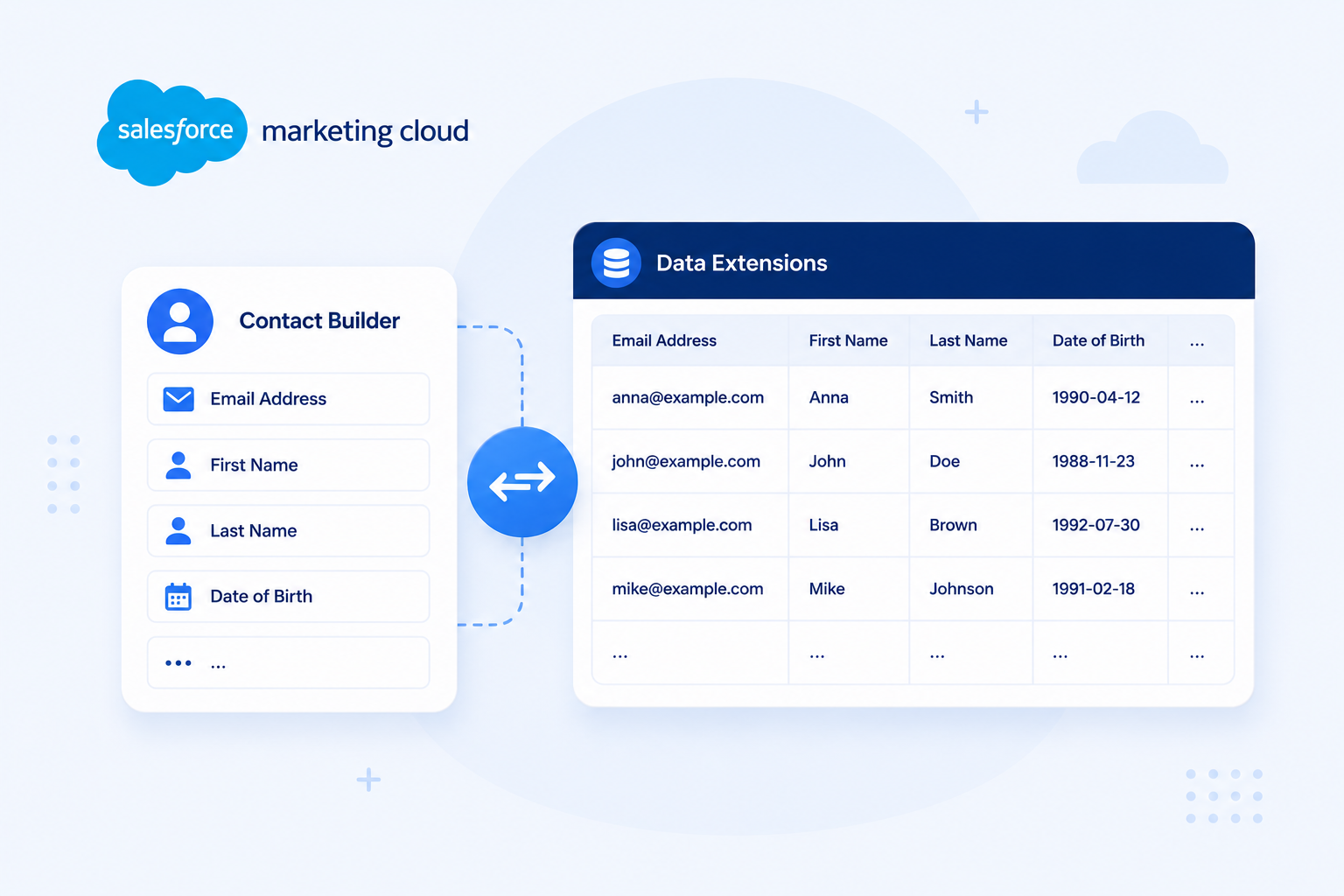
Data extension: a table in SFMC used to store subscriber data or campaign-related information. Data extensions can have a custom schema and support relational data structures. Most Automation Studio workflows read from and write to data extensions.
Filtered data extension: a data extension created by applying filter criteria to an existing data extension. Generated by Filter Activity in Automation Studio or manually via the filter interface in Email Studio.
FTP / SFTP: File Transfer Protocol and Secure File Transfer Protocol. SFMC provides an FTP location for exchanging files between external systems and the platform. Import File, File Transfer, and Data Extract activities all interact with this FTP location.
SQL Query Activity: an Automation Studio activity that queries one or more data extensions using SQL and writes the output to a target data extension. The primary tool for data segmentation, transformation, and audience building in Automation Studio.
SSJS (Server-Side JavaScript): a JavaScript variant supported by SFMC for use in Script Activity within Automation Studio and in Cloud Pages. Used for programmatic logic that cannot be handled by SQL alone.
Verification Activity: an Automation Studio activity that checks whether a data extension meets a defined condition before the workflow continues. Stops the automation if the condition is not met, preventing sends to empty or malformed audiences.