

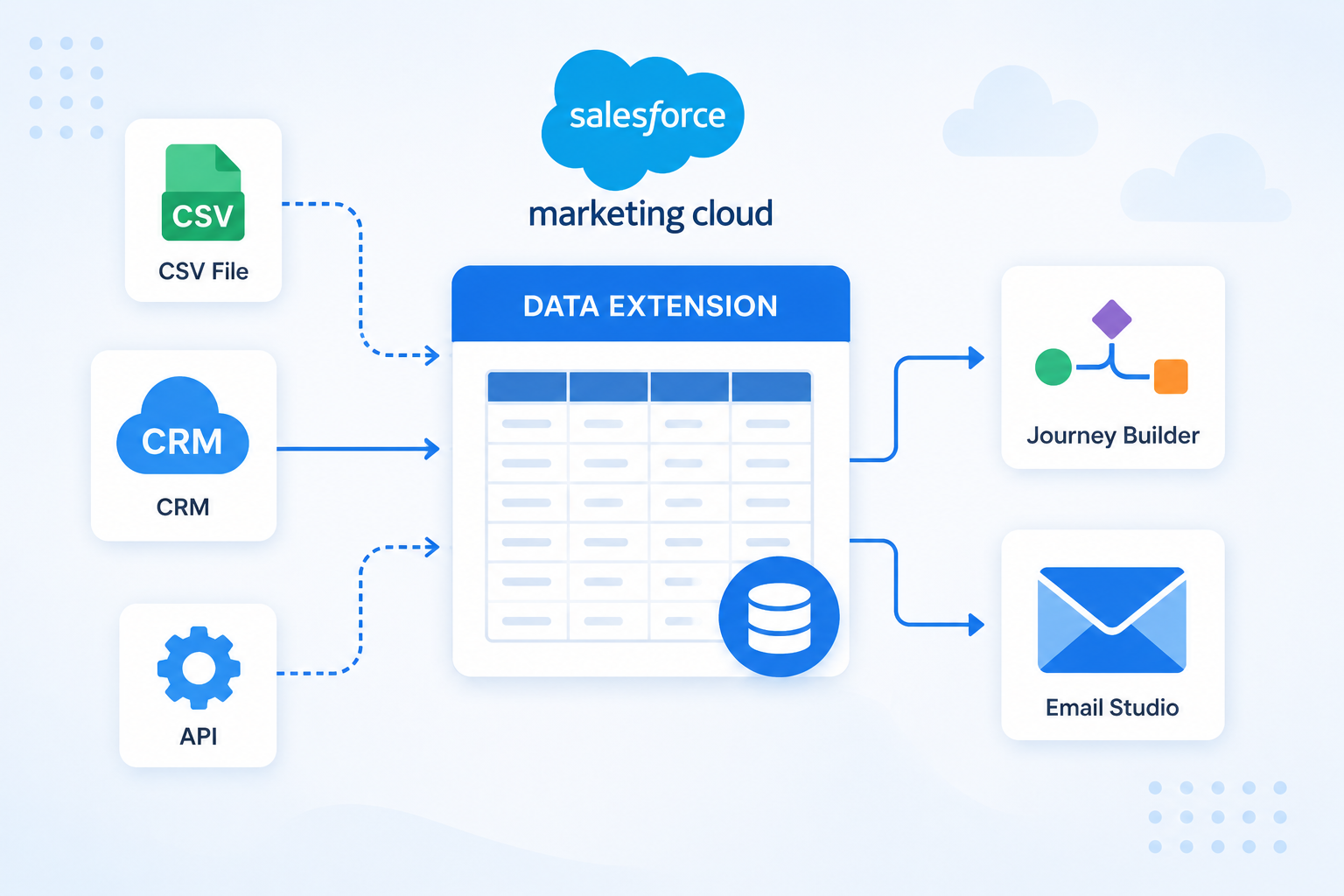
Data import is one of the most routine tasks in Salesforce Marketing Cloud (SFMC), and one of the most common sources of errors when not set up correctly. Whether you are loading a subscriber list, syncing transaction data, or building a segmentation feed, the method you choose and how you configure it affects data quality, deliverability, and platform performance.
This article covers the three main ways to import data into SFMC, when to use each, and what to prepare before you start.
Three Ways to Import Data into SFMC
| Method | Best for | Technical level |
|---|---|---|
| Import Wizard | One-off imports, test data, small files | Low |
| Import File Activity | Recurring imports, large files, production workflows | Medium |
| REST API | Real-time data, event-driven triggers, custom integrations | High |
Before You Import: What to Prepare
Regardless of method, the following need to be in place before any import:
- File format: CSV or tab-delimited files are supported. UTF-8 encoding is recommended to avoid character errors in non-ASCII fields
- Field mapping: column headers in the file must match field names in the target data extension*
- Subscriber key field: identify which field in the file maps to the subscriber key. This must be consistent with your contact model
- Sendability: if the data extension is sendable, confirm the send relationship is configured before importing data that will be used in a live send
- Primary key: if the data extension has a primary key, decide whether the import will overwrite existing records or append new ones
- Data retention: set a data retention policy on the data extension before importing large volumes to avoid accumulation
Method 1: Import Wizard
The Import Wizard is the manual, UI-based option inside SFMC. You upload a file directly through the interface, map the fields, and run the import on demand.
Access: Email Studio via the Subscribers menu, or Contact Builder via the Import Contacts option.
Use when:
- Running a one-time import that will not repeat
- Loading test data into a development data extension
- The file is small and the process does not need to be automated
Limitations:
- Cannot be scheduled. Every import must be triggered manually
- Not suitable for large file volumes or production workflows
- No native error alerting; you need to check the import log manually after each run
Method 2: Import File Activity in Automation Studio
Import File Activity* is the standard method for recurring, scheduled data imports in production SFMC environments. It runs inside Automation Studio as part of an automated workflow.
How it works:
- A file is placed at a designated FTP* or SFTP location, either manually or by an external system
- A File Transfer Activity runs first if the file needs to be unzipped or decrypted before import
- The Import File Activity picks up the file, maps the fields, and loads the data into the target data extension
- A Verification Activity can be added before the import step to confirm the file contains records before proceeding
Trigger options:
- Scheduled: the automation runs at a fixed time and frequency: daily, hourly, or custom
- File Drop: the automation fires automatically when a file appears at the designated FTP location, useful when the file arrival time is variable
Note: files placed on the SFMC-dedicated SFTP are automatically deleted after a single import. If you need to retain source files after import, use an external SFTP location rather than the SFMC-managed one.
Use when:
- Importing data on a regular schedule from an external system
- Processing files that arrive via SFTP from a CRM, ERP, or data warehouse
- The import is part of a larger automation workflow that includes SQL queries or send activities
Method 3: REST API
The REST API allows data to be written directly into a data extension programmatically, without a file. This is the correct method for real-time or event-driven data: a customer completes a purchase, a loyalty tier updates, a form is submitted.
SFMC supports both synchronous and asynchronous REST API routes for data extension row operations. The synchronous method stops processing and waits for the response before continuing, while the asynchronous method queues the request in the background. For high-volume or latency-sensitive integrations, the asynchronous route is generally preferred.
Spring ’24 also introduced new REST API routes that allow one-time imports directly into data extensions from external file storage, without needing to create an import definition in advance. (Salesforce Developer Docs)
Use when:
- Data needs to be written to SFMC in real time based on a customer action or system event
- An external platform (e-commerce, mobile app, loyalty system) needs to push data into SFMC on a per-event basis
- You are building a custom integration that does not rely on file-based transfers
Do not use for:
- Bulk historical data loads. File-based import via Automation Studio handles large volumes more efficiently
- Teams without development resource to build and maintain API integrations
Common Import Mistakes
- Wrong file encoding: non-UTF-8 encoding causes special characters (accents, symbols) to import as garbled text; always specify UTF-8 when exporting from source systems
- Column headers not matching DE field names: the import will fail or map incorrectly if headers do not exactly match the target data extension field names, including spacing and capitalisation
- Subscriber key field not mapped: if the subscriber key field is not correctly mapped during import, SFMC cannot link the imported records to the contact model; this causes issues in sends and journey entry
- Overwrite instead of append: selecting overwrite on a data extension that has existing records deletes all existing data before loading the new file; confirm the correct action before running any production import
- No data retention policy: importing large volumes into a data extension without a retention policy causes the table to grow indefinitely, increasing query times and storage costs
- Importing into a sendable DE before the send relationship is configured: records will load correctly but the DE cannot be used in a send until the send relationship is in place; configure this before the first import if the DE will be used for sending
How to Handle Import Errors
Every import method generates a log. For Import File Activity, an error file is written to the FTP location after each run. It contains the rows that failed to import and the reason for each failure.
Common errors to look for:
- Duplicate primary key: a record with the same primary key already exists and the import action is set to something other than upsert
- Field type mismatch: a value in the file does not match the data type of the target field, for example, text in a Date field
- Missing required field: a field marked as required in the data extension has no value in the import file
Do not ignore import errors, even when they affect only a small number of rows. Recurring field type errors often indicate a data quality issue in the source system. Duplicate key errors can signal inconsistencies in how subscriber keys are being assigned upstream.
Going Deeper
- What Is a Data Extension in Salesforce Marketing Cloud?
- What Is Salesforce Marketing Cloud Automation Studio?
- How to Design a Data Model in Salesforce Marketing Cloud
- Salesforce Marketing Cloud Contact Builder and Data Extensions
Need help setting up a reliable data import workflow for your SFMC environment? Talk to our team.
Glossary
Data extension: a table in SFMC used to store subscriber data or campaign-related information. All three import methods write data into a data extension.
File Drop trigger: an Automation Studio trigger that fires automatically when a file appears at a specified FTP location, rather than running on a fixed schedule.
File Transfer Activity: an Automation Studio activity that moves, renames, unzips, or decrypts files on the SFMC FTP before a subsequent Import File Activity reads them.
FTP / SFTP: File Transfer Protocol and Secure File Transfer Protocol. SFMC provides a built-in SFTP location for exchanging files between external systems and the platform. Note: files placed on the SFMC-dedicated SFTP are automatically deleted after a single import. Use an external SFTP if source file retention is required.
Import File Activity: an Automation Studio activity that imports a delimited file from an FTP or SFTP location into a specified data extension on a schedule or file drop trigger.
Import Wizard: a manual, UI-based import tool in SFMC accessible via Email Studio or Contact Builder. Used for one-off imports and not suitable for recurring production workflows.
Send relationship: the configuration that links a sendable data extension to the SFMC contact model. Must be in place before the data extension can be used as an audience for sends or journey entry.
Upsert: an import action that updates existing records if a matching primary key is found, and inserts a new record if no match exists. The recommended action for most production imports.
Verification Activity: an Automation Studio activity that checks whether a data extension meets a defined condition before the workflow continues. Used to confirm a file has been imported successfully before triggering a send.