
Reading time: 5 min
Data Extensions are SFMC’s database tables – they power everything from sends to segmentation to personalization. But not all Data Extensions behave the same way, and choosing the wrong type is one of the most common sources of confusion for teams setting up Marketing Cloud Connect for the first time.
The Four Types of Data Extensions in SFMC
SFMC has four Data Extension types, each built for a different purpose:
Standard Data Extension – The most commonly used type. Fully customisable fields, manually or programmatically populated, and can be made sendable. This is where most of your working data lives.
Filtered Data Extension – A subset of a Standard DE created by applying attribute-based filters. Useful for simple segmentation without SQL, but limited to single-source filtering. For anything involving joins or calculations, SQL Query Activity writing to a Standard DE is the better approach.
Random Data Extension – Splits a source DE into random groups. Primarily used for A/B or multivariate testing where equal random audience splits are needed.
Synchronized Data Extension (SDE) – Created automatically when a Salesforce CRM object is synced into Marketing Cloud via Marketing Cloud Connect. Read-only, not sendable, and managed entirely by the sync process.
Standard Data Extensions
A Standard DE is a custom table you define – you choose the fields, data types, and whether it is sendable. Records can be imported manually, loaded via API, or written to by SQL Query Activity in Automation Studio.
Standard DEs are the workhorse of SFMC. Sendable audiences, lookup tables, transactional data, campaign tracking – all of it lives here.
Using a Standard DE for Segmentation
The most common segmentation pattern in SFMC:
- Pull data from one or more sources using a SQL Query Activity in Automation Studio
- Write the output into a Standard DE
- Use that Standard DE as the send audience for a journey or email send
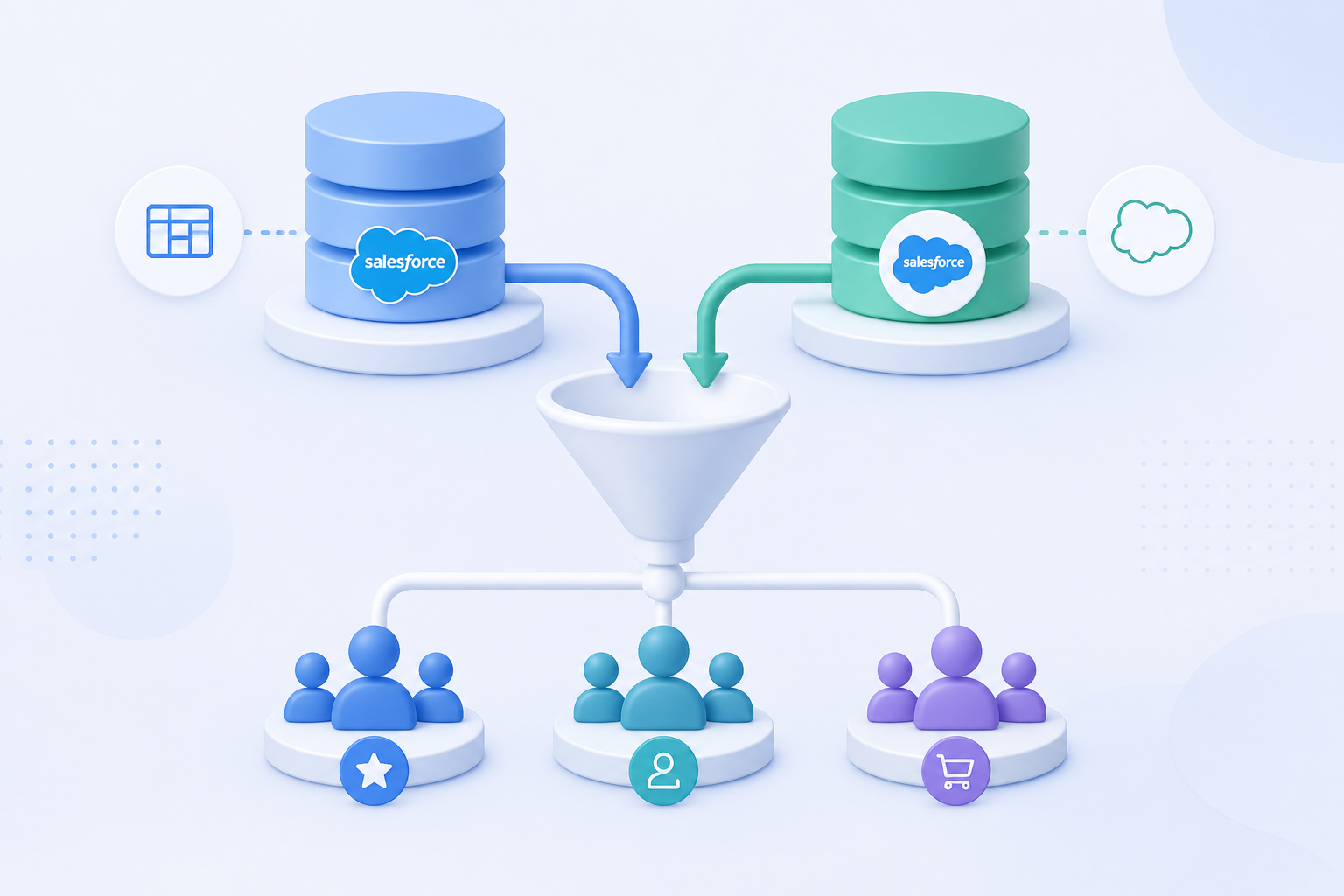
For example, to send to all Contacts from Salesforce CRM who made a purchase in the last 30 days, you query the Synchronized Data Extension containing Contact records alongside a purchase data source, apply the date filter, and write the result into a sendable Standard DE. The Standard DE is what you send from — never the SDE directly.
Synchronized Data Extensions
When you connect Salesforce CRM to Marketing Cloud via Marketing Cloud Connect and configure a data sync, SFMC automatically creates a Synchronized Data Extension for each synced object – Contact, Lead, or a custom object. These sit in the Synchronized Data Extensions folder in Contact Builder.
Key characteristics:
- Created and managed automatically by Marketing Cloud Connect
- Populated on a poll schedule (15, 30, or 60 minutes)
- Read-only — records cannot be added, edited, or deleted manually
- Not sendable — cannot be used directly as a send audience
- Accessible via SQL queries in Automation Studio
SDEs are the entry point for CRM data into Marketing Cloud. They are the source you query from – not the destination you send to.
Standard DE vs Synchronized DE: Key Differences
| Standard DE | Synchronized DE | |
|---|---|---|
| Created by | You | Marketing Cloud Connect |
| Sendable | Yes (if configured) | No |
| Editable manually | Yes | No |
| Populated by | Import, API, SQL, Automation | CRM sync only |
| Data freshness | On demand | Poll schedule (15-60 min) |
| Use in SQL queries | Yes (read and write) | Yes (read only) |
| Use as send audience | Yes | No |
Common Mistakes Teams Make
Trying to send directly from a Synchronized DE. SDEs are not sendable. The solution is always to query the SDE and write the output into a Standard DE first. (SFMC Simplified)
Syncing all CRM objects without a filter. Every Contact, Lead, or User record that syncs into Marketing Cloud is counted as a billable contact — even if you never send to them. For large CRM databases, this can push contact counts over licence limits before a single email goes out. Always configure a checkbox filter on the CRM side to control which records sync across. (Mateusz Dąbrowski)
Expecting real-time data from SDEs. SDEs refresh on a poll schedule. If your use case requires triggering a send the moment a CRM event occurs, an API-triggered send is the right approach — not a scheduled automation reading from an SDE.
Using a Filtered DE instead of SQL for complex segmentation. Filtered DEs work for simple single-attribute filters but cannot join across multiple data sources. SQL Query Activity writing to a Standard DE is the correct tool as soon as more than one table is involved.
Working through a data architecture question in SFMC? Get in touch – we help teams structure their data model before it becomes a bottleneck.
Related reading: